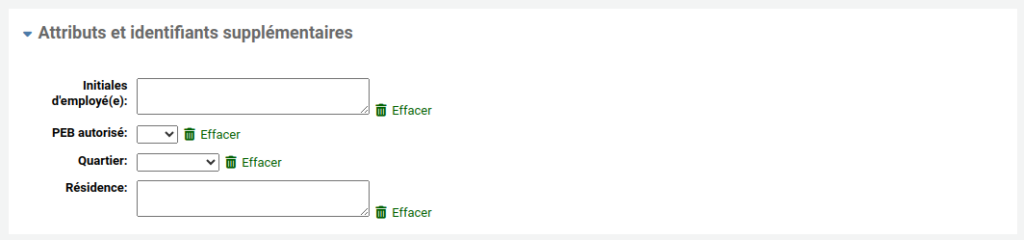
Sometimes, the fields in the patron addition form are not sufficient to meet your library’s needs. It is possible to add additional fields, called “user attributes”
Enable system preference
Go to Administration > System preferences
Search for ExtendedPatronAttributes
Change the value to “Enable”
Click on “Save all user preferences”
Add attributes
Go to Administration > Patron attribute types
Click on “New patron attribute type”
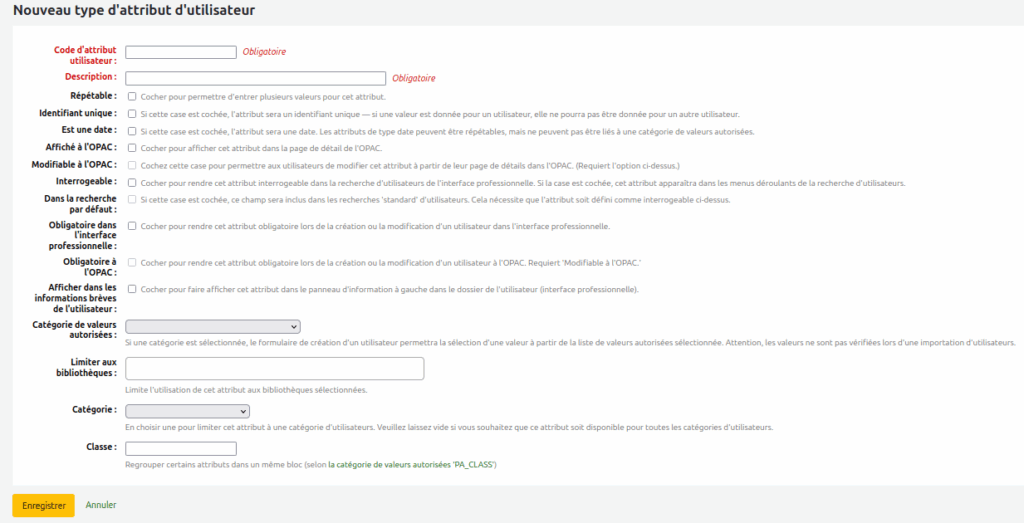
Fill out the form
Patron attribute code : a unique code
Description : text that will appear in Koha.
Repeatable : check if a user can have this attribute multiple times (to record the branche(s) where a patron works, for example).
Unique identifier : check if this attribute should be unique to a patron (for a student card number, for example).
Is a date : check if this attribute is a date.
Display in OPAC : Check the box so that the patron can see this information in their record in the OPAC.
Editable in OPAC : check the box so that the patron can modify this information from their file in the OPAC.
Searchable : check to be able to use this attribute as a search criterion in patron search.
Search by default : check to be able to search for this attribute in the “standard” patron search (i.e. without a special search field).
Staff interface mandatory : check to make this attribute mandatory when modifying the patron on the intranet.
OPAC mandatory : check to make this attribute mandatory when modifying the patron on the intranet.
Display in patron’s brief information : check to display this attribute in the left column of the user’s folder, which is visible during the loan (otherwise, this information will only be visible on the folder details page).
Authorized value category : If you want employees to be able to use a drop-down menu to select the value, you must first create a category of allowed values, then add values and select that category of allowed values here.
Library limitation : if this attribute applies to only one or a few libraries, select them here.
Tip
To select more than one library, hold down the Ctrl key and select the libraries with the mouse.
Category : if this attribute applies only to one category of patrons, select it here.